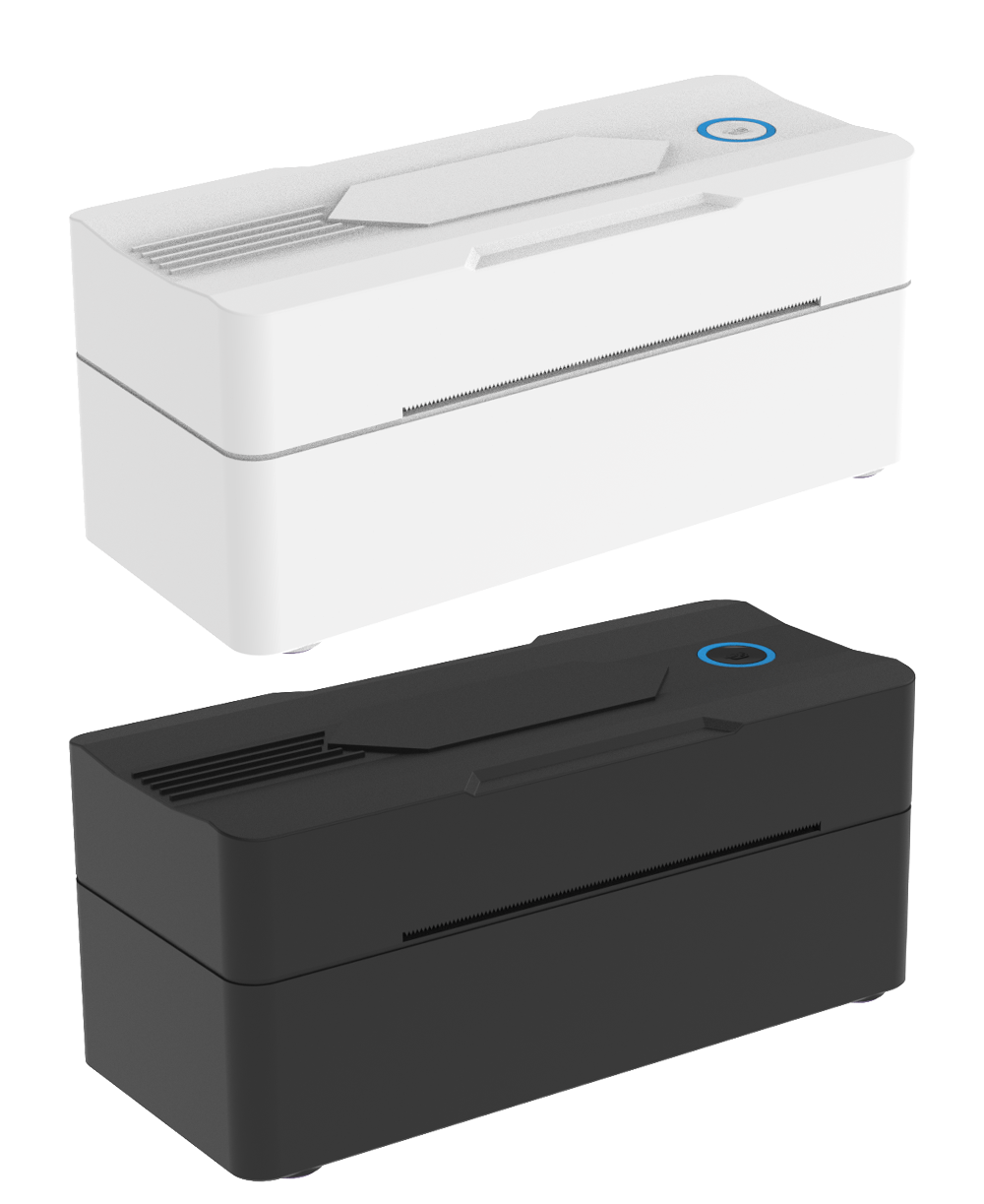
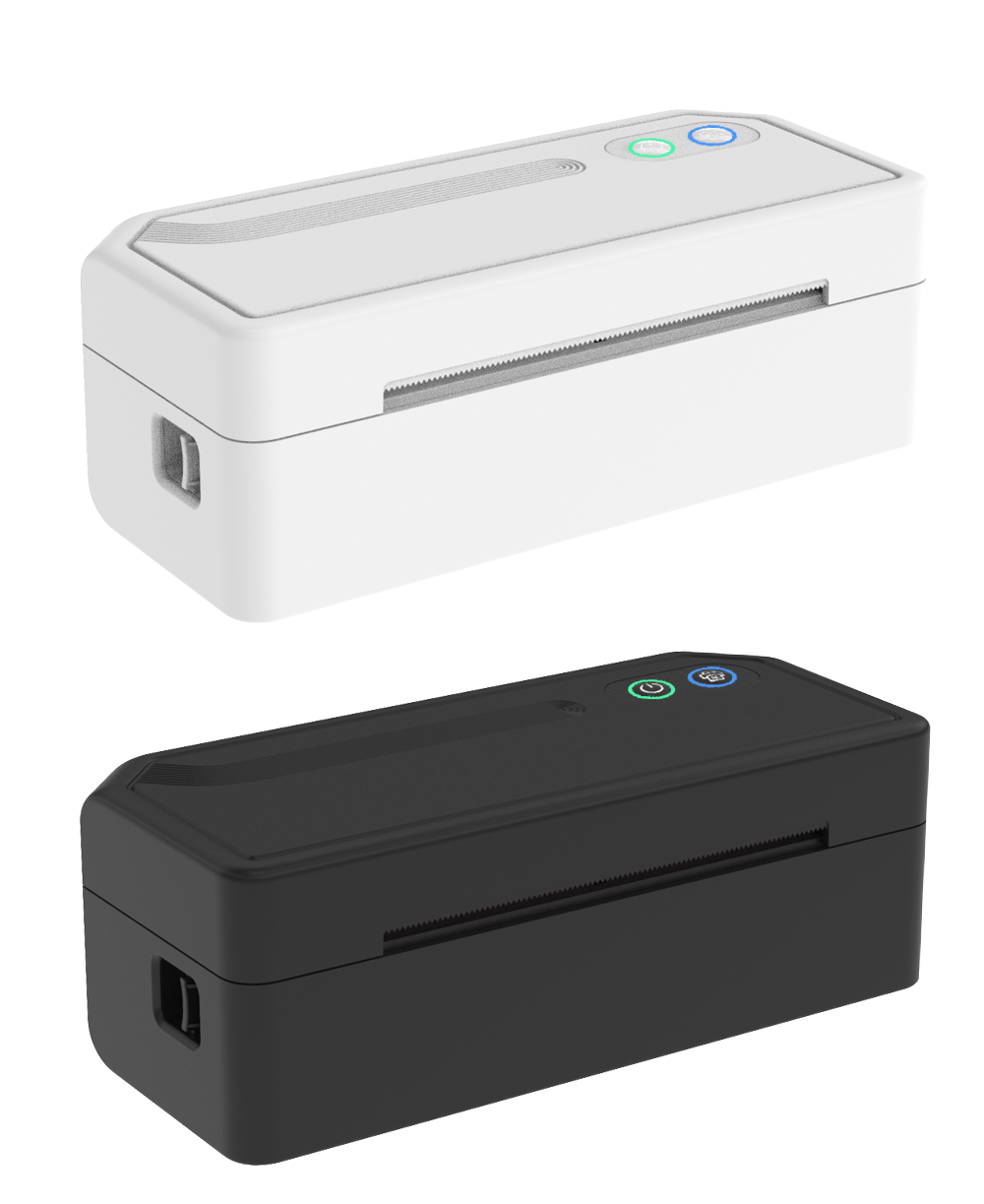
Quick Setup Steps
-
1
Unbox and Inspect
Carefully remove all packaging materials and accessories. Check that all components are present and undamaged. Keep the original packaging for future transport if needed.
-
2
Install the Print Head
Open the print head compartment following the instructions in the video. Carefully install the print head, ensuring it's properly seated and locked in place.
-
3
Load Paper
Adjust the paper guides to match your paper size. Load the paper stack carefully, making sure it's aligned properly and the feed rollers are engaged correctly.
-
4
Connect and Power On
Connect the power cable and USB cable (or configure WiFi connection). Press the power button and wait for the printer to initialize completely.
-
5
Install Software and Drivers
Download the latest PrintHubX software from our website. Follow the installation wizard prompts to install drivers and configuration tools on your computer.
-
6
Print a Test Page
Run the alignment and calibration utilities from the software. Print a test page to verify print quality and make any necessary adjustments.
Need Help?
Our support team is here to assist you with any questions or issues during setup.
Contact SupportPro Tips for Best Results
Regular Maintenance
Clean the print head regularly and perform nozzle checks weekly to maintain optimal print quality.
Use Quality Paper
Always use recommended paper types and store them properly to avoid paper jams and inconsistent results.
Firmware Updates
Keep your printer's firmware updated to access the latest features and improvements.
Proper Environment
Place your printer in a clean, dust-free area with stable temperature and humidity levels.